A firm-level switch, off by default
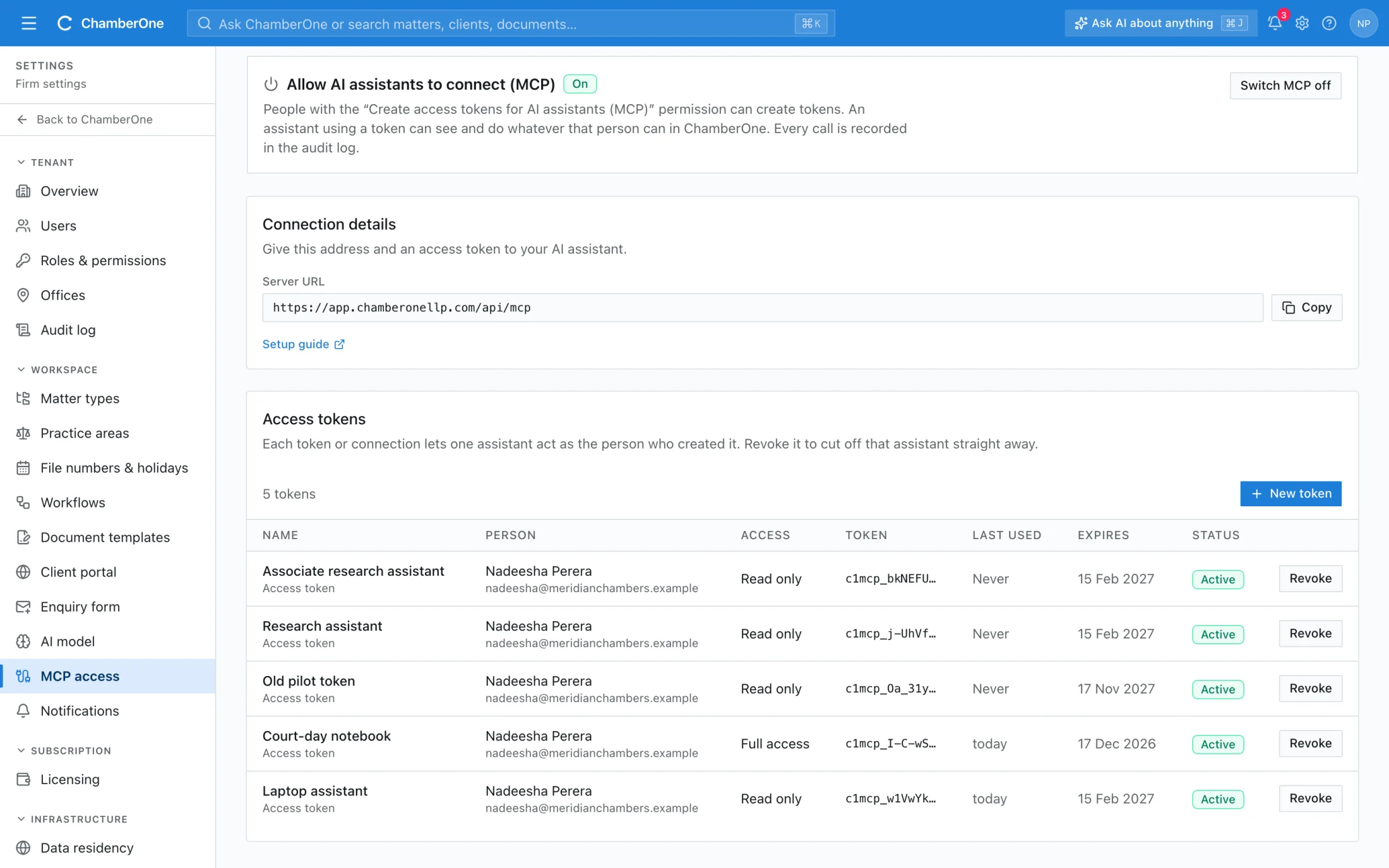
Nothing can connect until an admin switches MCP on. Switching it off stops every connection at once; the connections are kept, so switching it back on restores them.
ChamberOne has a built-in MCP server. Connect an MCP-compatible assistant and it can look up cases, clients, tasks, hearings and invoices and, with full access, add tasks and log time. It acts as the person who connected it, so it sees only what that person can see.
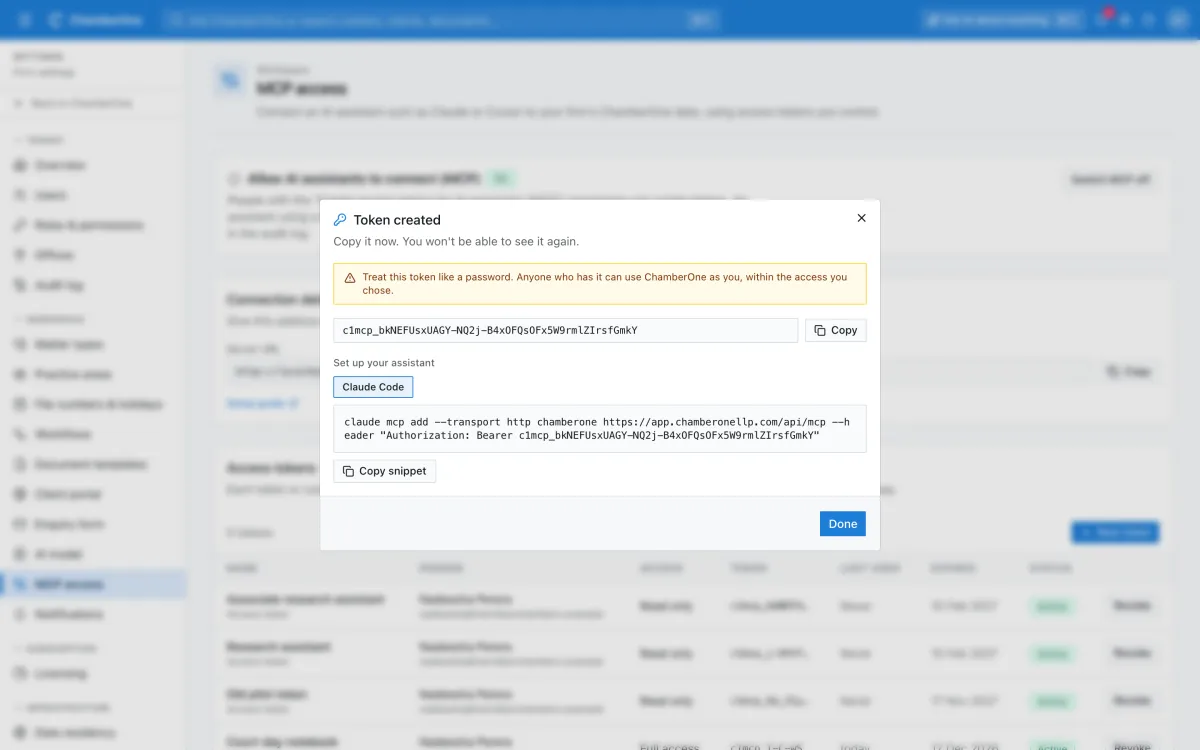
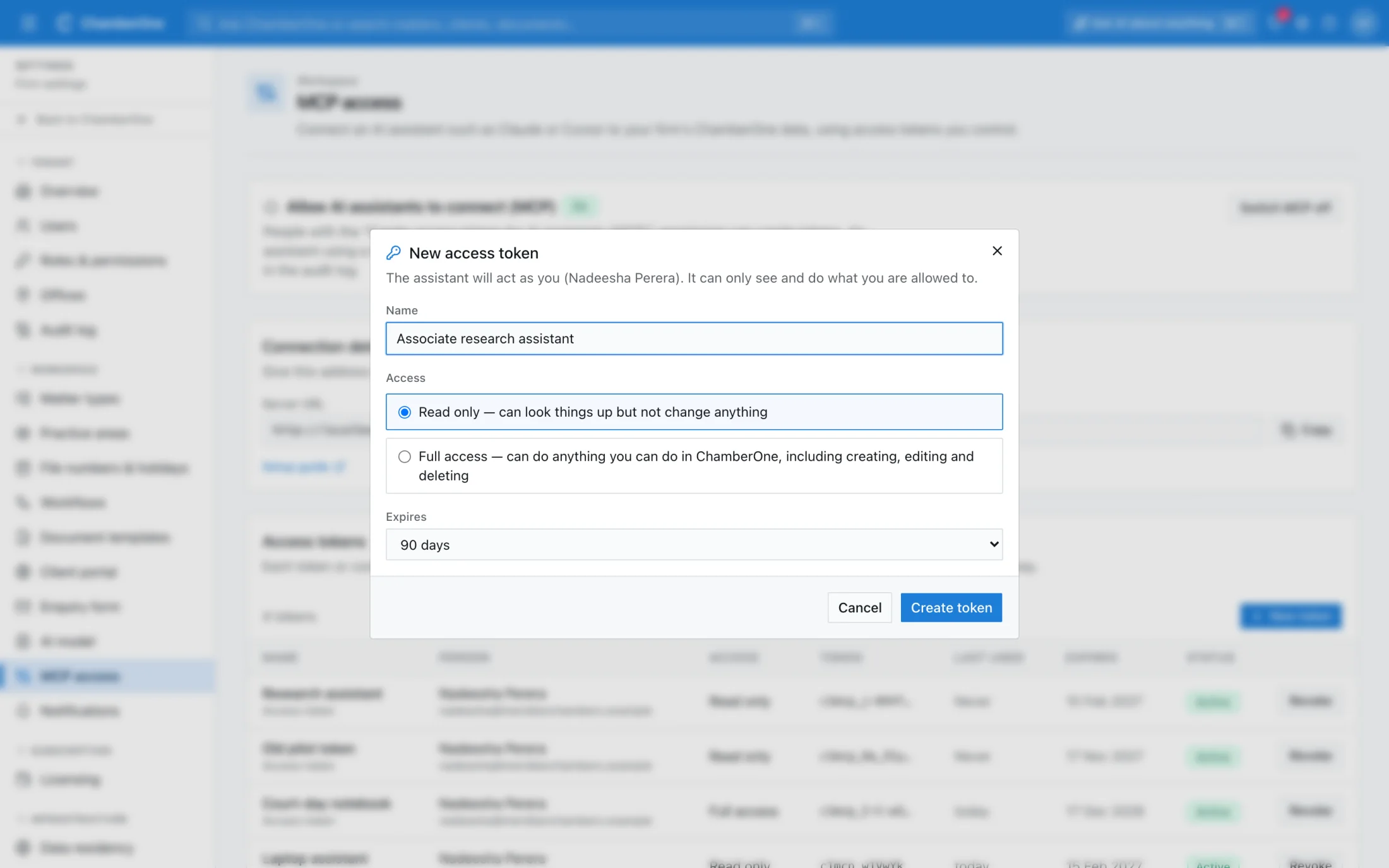
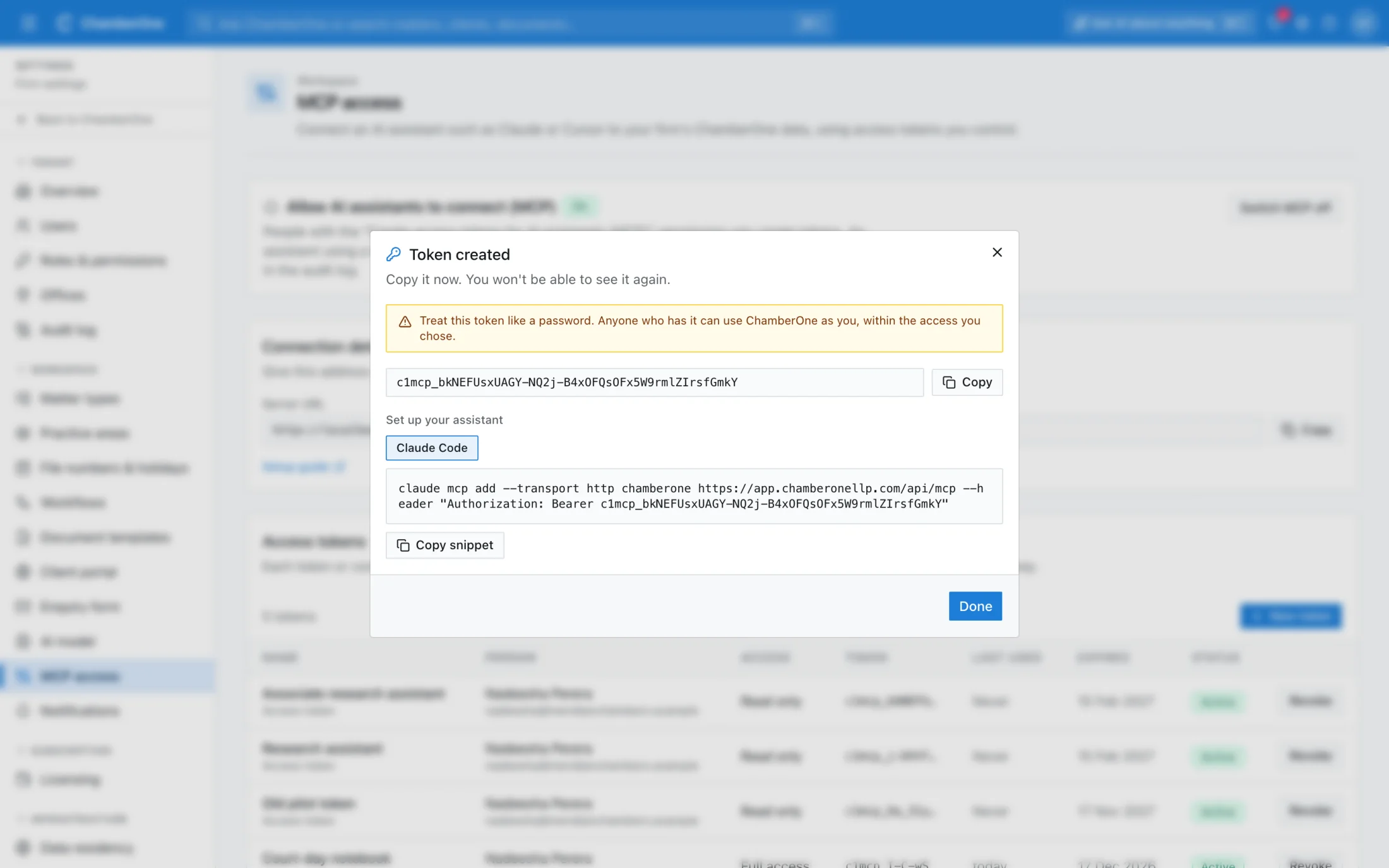
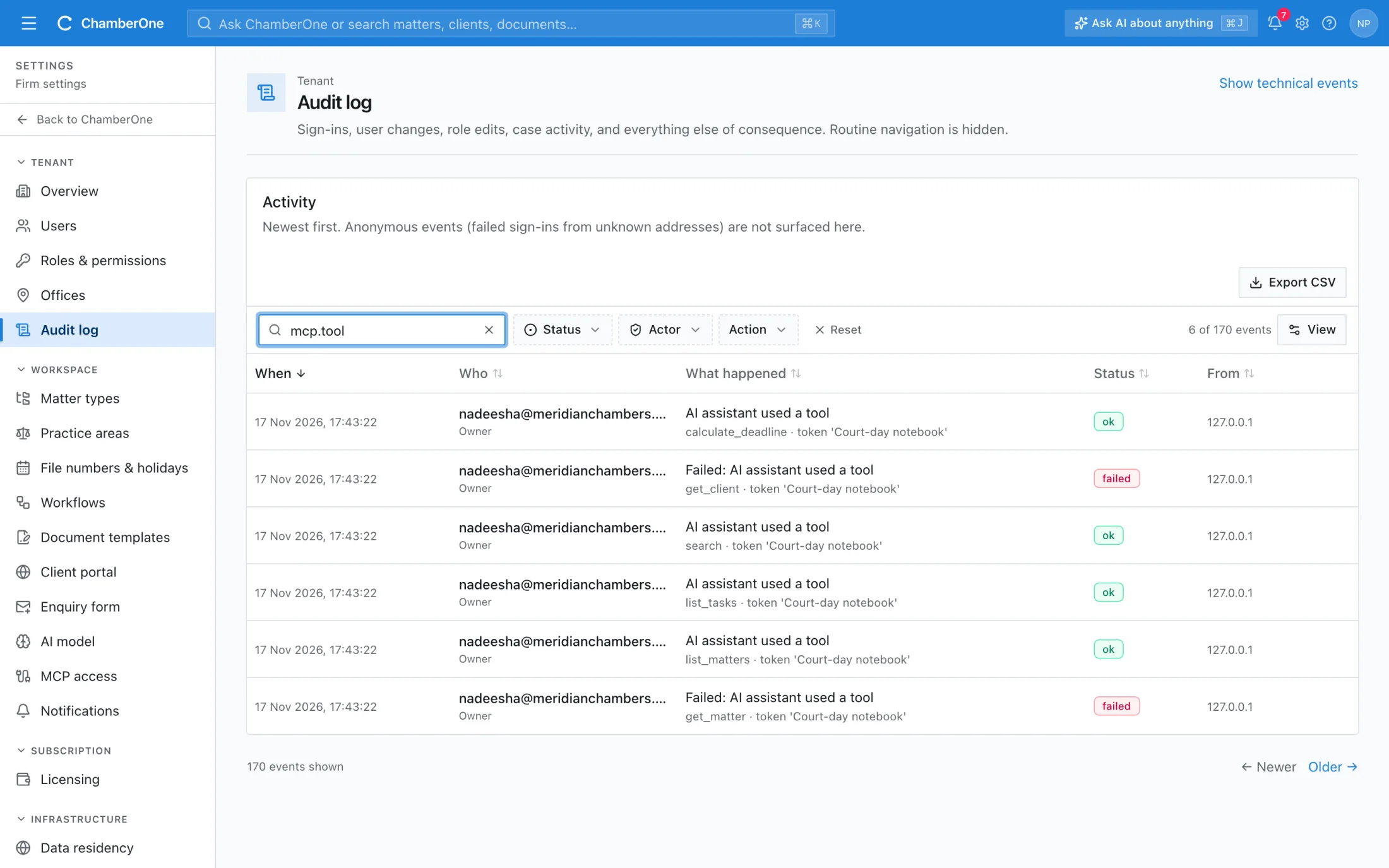
Five screens from a sample firm. All names and matters are fictitious.
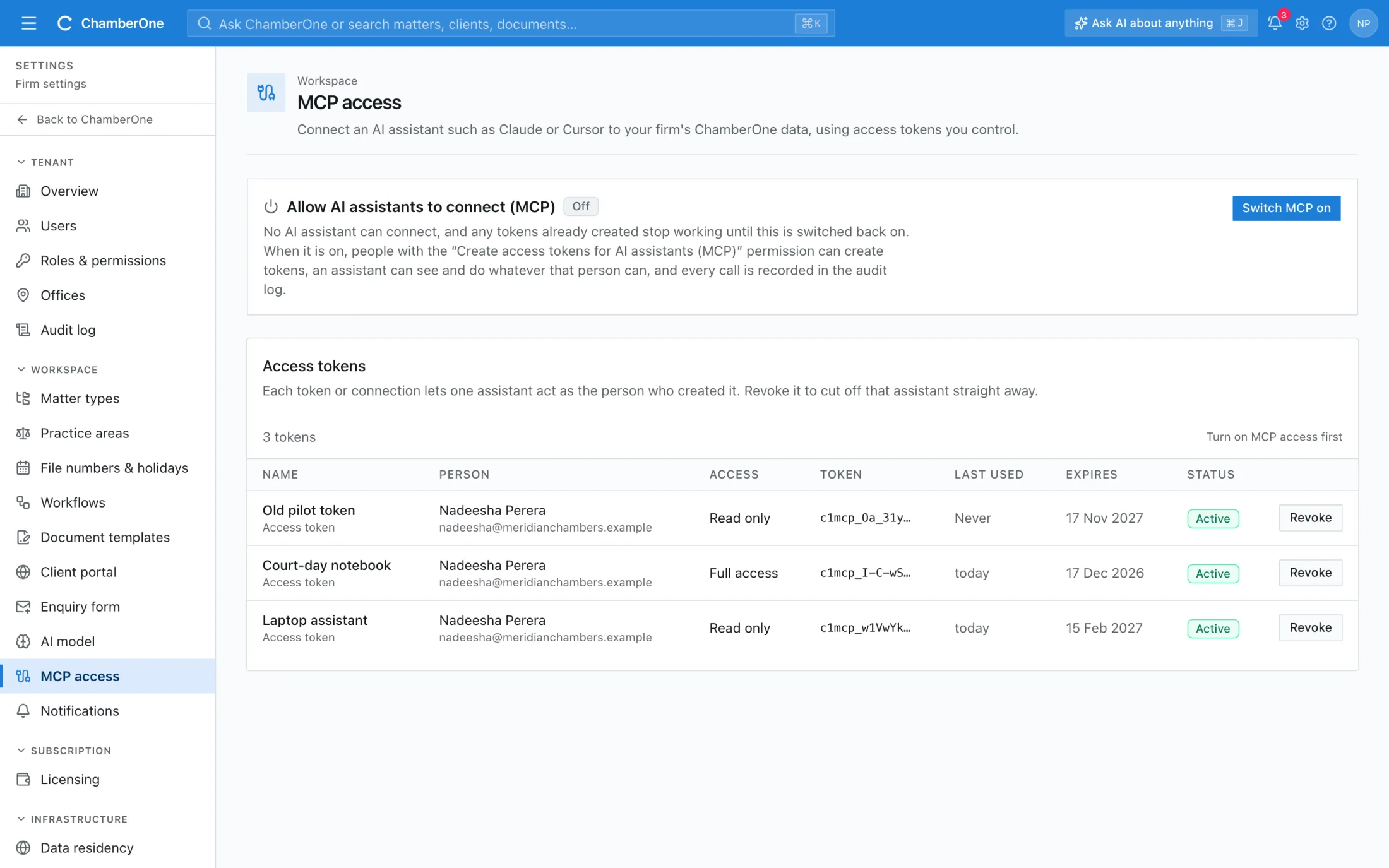
An Owner turns on MCP access in Settings. It is off by default, and only people whose role allows it can connect an assistant.
Sign in from the assistant, or create an access token in Settings, choose Read only or Full access, and paste it into the assistant.
The assistant answers from your firm's data as you. Every tool call is written to the audit log under your name.
You do not need to learn any commands. Ask in plain language and the assistant picks the right tool. These are the kinds of question it can answer from your firm's own data.
The last two need full access. With a read-only connection the assistant can look things up but cannot change anything.
Eleven everyday tools cover the common questions directly. The assistant chooses between them itself.
searchFree-text search across cases, clients, tasks and documents.Readget_matterOne case: title, number, status, phase, risk score, next deadline, owner and client.Readlist_mattersCases by filter, such as your open cases, flagged cases or cases at risk.Readget_clientOne client or contact, including KYC status and owner.Readget_documentA document's details: kind, pages, language and the case it belongs to.Readlist_tasksTasks by status, assignee, case or due date.Readlist_calendar_eventsTasks, deadlines and court hearings in a date range.Readcalculate_deadlineWorks out a Sri Lankan limitation period from a start date.Readcreate_taskAdds a task to a case.Full access onlylog_timeRecords a time entry on a case.Full access onlydraft_documentCreates a document draft on a case.Full access onlyFour more tools reach the rest of the product, such as invoices, trust accounts, contracts, reports and settings: list_api_areas, find_api_operations, describe_api_operation and call_api. The assistant finds the right operation, checks what it needs and runs it as you. A read-only connection can only fetch. Each call is checked against your role in the same way as the matching screen.
There are two ways to connect. Both end with an entry in Settings, MCP access, which you can cut off at any time.
https://app.chamberonellp.com/api/mcpRead only is preselected every time. Approve only a connection you started yourself, and check the address on the approval page. Which connector options you see depends on the assistant and, for some, on your plan with its provider.
Treat a token like a password. Keep it in the assistant's configuration, use one token per device, and revoke it if a laptop is lost or someone leaves.
Works with MCP-compatible assistants. We have checked the server with the official MCP reference client; we have not yet tested it with specific assistant apps, so we do not promise a particular one. The documentation has configuration examples for command-line tools and code editors.
Full setup guide, tool reference and security details in the documentationConnecting an assistant to client files is a decision for the firm, not for one person. These are the controls, and they are enforced by ChamberOne, not left to the assistant.
Nothing can connect until an admin switches MCP on. Switching it off stops every connection at once; the connections are kept, so switching it back on restores them.
Connecting needs a specific permission, held by the Owner by default. If the permission is removed from a role, that person's connections stop working immediately.
A connection belongs to the person who made it and has their role and nothing more. There is no all-seeing service account.
Restricted cases and clients stay hidden from the assistant exactly as they are from its person. A hidden record answers "not found", the same as one that does not exist.
A read-only connection cannot create, change or delete anything, even if its person can.
30 days, 90 days or 1 year, never longer. People see and revoke their own connections; admins can see and revoke everyone's. Revoking takes effect immediately.
Suspending a user stops their connections. Two-step verification still applies: if your firm requires it and the person has not set it up, their connections are refused.
Up to 240 requests a minute per connection.
These are closed to every connection, whatever the person's role or the access level chosen.
These stay with a person at a keyboard, because they would outlast the connection or redirect the firm's data or money.
Every tool call is written to the audit log under the person's name, with the connection used, the tool, what it was asked to look up or change, and whether it worked. Calls that go on to read or change a record are logged again as that read or change, marked as coming through MCP. Creating, approving, revoking and switching are logged too.
When an assistant calls a tool, ChamberOne sends the result, such as case details or client names, to that assistant. From there it is handled by the provider of the assistant, under their terms. ChamberOne cannot see or control what happens to it afterwards. Before you switch MCP on, check that the provider's terms suit client-confidential material, in particular whether conversations are used to train models and how long they are kept, and that connecting is consistent with your duties of confidentiality and what your clients have agreed to. Business plans usually differ from personal ones here. We suggest starting with a read-only connection and asking the assistant to confirm before it deletes anything, sends anything to a client or touches invoices, payments or trust money.
The Model Context Protocol is an open standard that lets an AI assistant use tools in another system. ChamberOne provides the server side, so an assistant that supports MCP can ask ChamberOne for information instead of you copying and pasting it.
MCP-compatible assistants. We have checked the server with the official MCP reference client but have not yet tested it with specific assistant apps, so we do not list any as supported. If you try one, tell us how it went.
No. The built-in features (briefs, document analysis, Ask AI) have their own switch and model settings. With MCP the model is one you chose and connected, and what it reads is handled under that provider's terms.
Only people whose role has the permission to create access tokens for AI assistants. By default that is the Owner. An admin must also have switched MCP on for the firm.
Only if the person who connected it can. Restricted cases are hidden from the assistant in exactly the same way as from that person.
Only with a full-access connection, and only what the person's role allows. It can never change users, roles, the two-step policy, the AI model settings, the billing profile or the online-payment account, and it can never reach sign-in or token settings.
Revoke the connection in Settings, MCP access, or switch MCP off for the firm. Both take effect immediately. Connections also end by themselves after the period you chose.
Yes. Open the audit log: each tool call appears as "AI assistant used a tool", with the tool and the name of the connection.
Included in the same subscription. Nothing here is a separate add-on.
Built-in roles plus your own. Permissions are enforced on the server, not just hidden in the interface.
AI-suggested, human and default-template tasks in one queue. AI suggestions stay marked until accepted.
Court dates, deadlines and milestones from your data, with a subscribe link for Outlook, Google or Apple Calendar.
60 days free, no card. A sample matter is loaded so the screens are not empty.